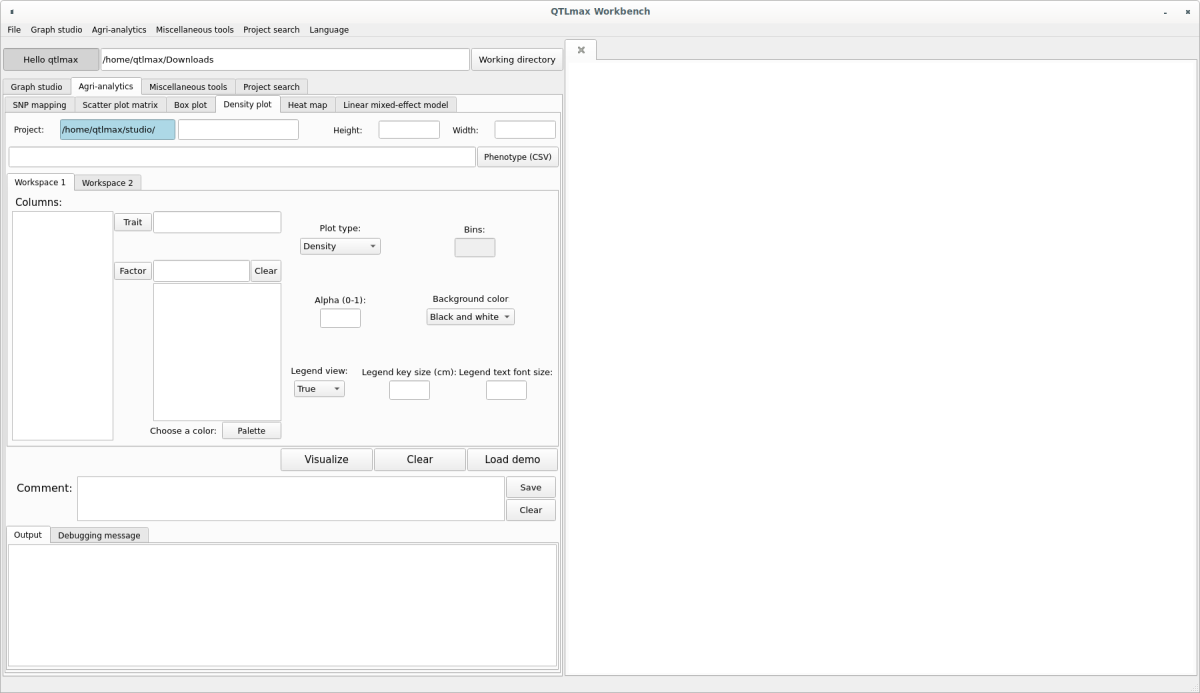
Figure 1 shows the “Density plot” tab page selected within the QTLmax Workbench.
(Figure 1)
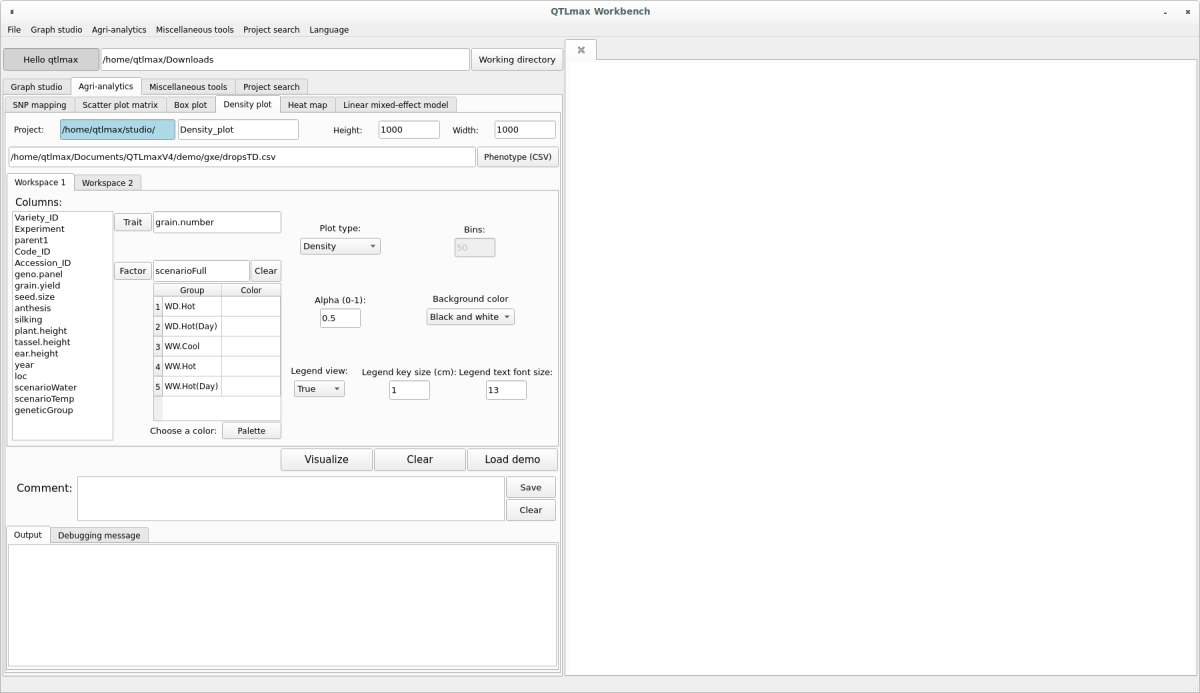
The “Density plot” tab page has many setting options. If you don’t want to select each setting option individually, just click the [Load demo] button. You’ll see that most of the setting options are configured automatically (Figure 2). The input data format is a phenotypic CSV (*.csv) file that includes environmental factors. After replacing the demo data with your own data, you can freely change the settings to your desired values.
You will see the header values of the entered phenotypic data appear as a list within the “Columns” box. Select the environmental factor column from the list and click the [Factor] button; you will then see the items included in that column listed in the table on the right. (Figure 2)
(Figure 2)
Select each item from the Factor list box and click the [Palette] button. From the pop-up palette, choose your desired color. Select colors for all other items using the same method.
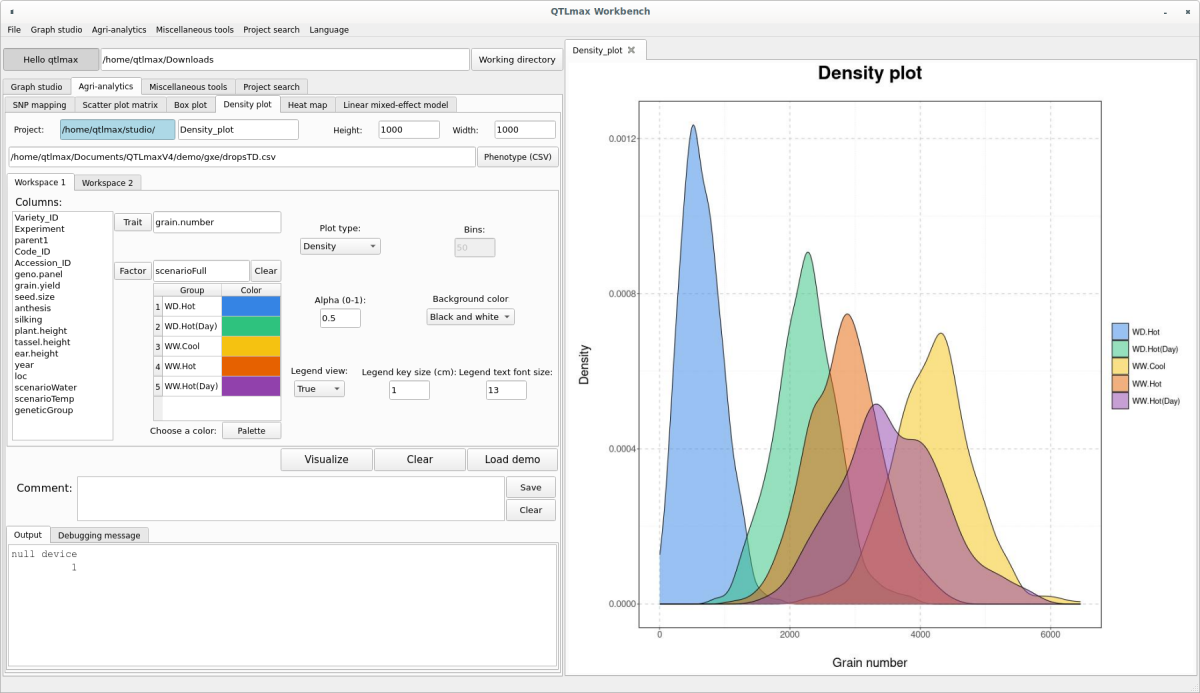
Go to the Workspace 2 tab page and select whether to display the Main title. If you check the display option, enter the Main title value. Once all settings are complete, click the [Visualize] button, and you’ll see the Density plot appear on the right-hand drawing panel (Figure 3).
(Figure 3)